Step 7: Give a team its own agent
An org agent is a shared agent the organisation owns, such as a refund desk for Support or a deal desk for Sales. It runs on CortexHub with the organisation's shared credentials, and anyone can work with it in the app or in Slack.
Create the agent
- Open Agents and select Create org agent. Give it a Name (people see it in Slack), an optional Role, and its Capabilities: MCP gateway for governed tools plus Brain, Files and Skills, and Model router for its models. Select Create.
- Decide what it may use: in Groups & access, switch to Agent groups, add the agent to a group and publish the toolkits it needs, as in Step 3. Give it a dedicated agent group so its access can change without affecting other agents.
- The org-wide rules cover it like any other agent. To give it rules of its own, add them on its agent group's Rules tab and set the group's toolkit decisions.
- On the agent's Settings, write its instructions under General, and review its capabilities and built-in toolkits.
- Members chat with it from the agent picker in the chat composer. To run its work on a schedule, open its Routines tab, or Routines in the Admin view.
Put it in Slack
- Make sure named bots are enabled (Step 4).
- On the agent's Settings -> Slack, select Add to Slack. It installs as its own bot, for example @Refund Desk.
- In Slack, add the bot to a channel, such as #support.
- Test it: mention the bot with a request that a policy holds for approval, and check the approval card appears.
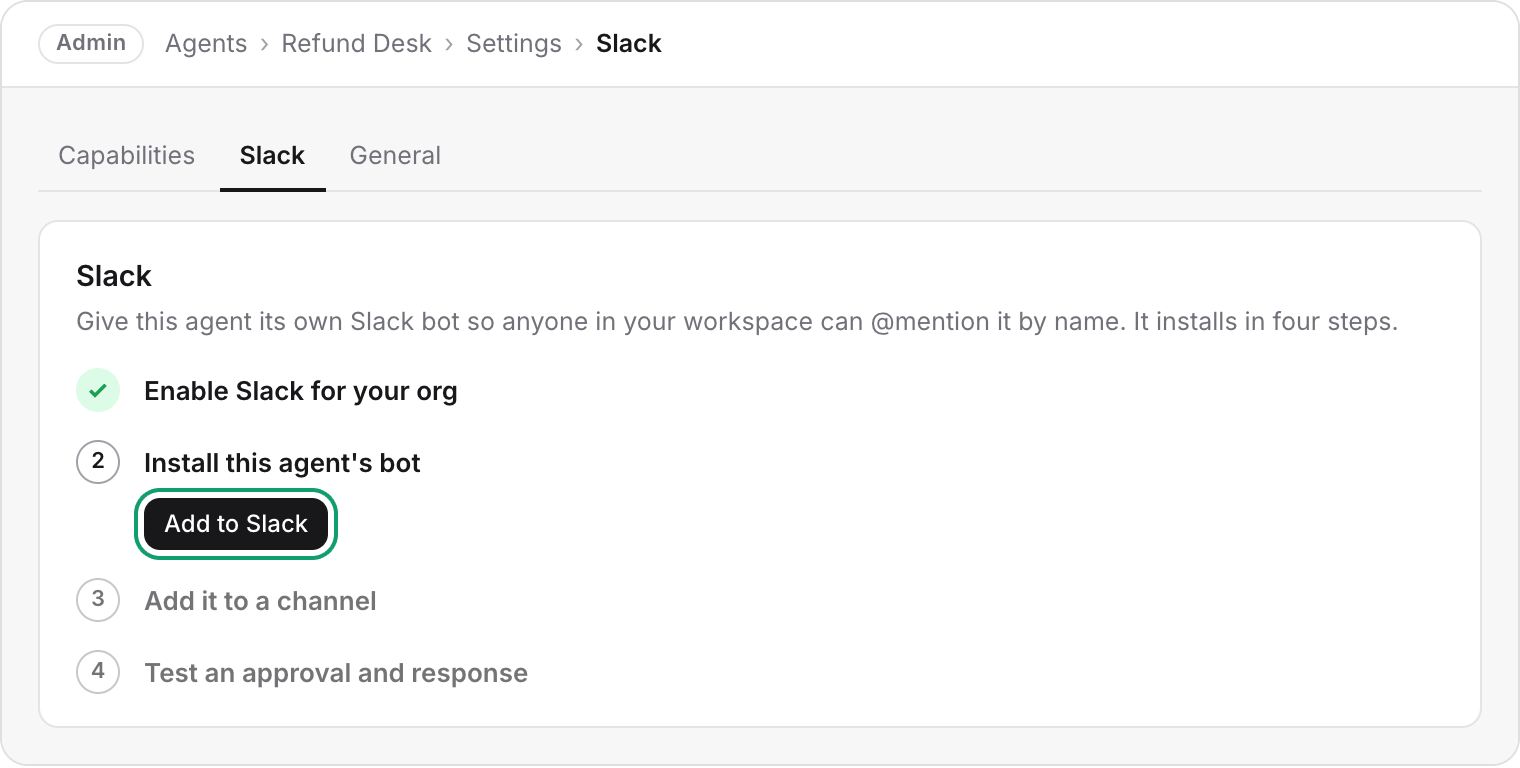
Install Refund Desk as its own bot with Add to Slack.
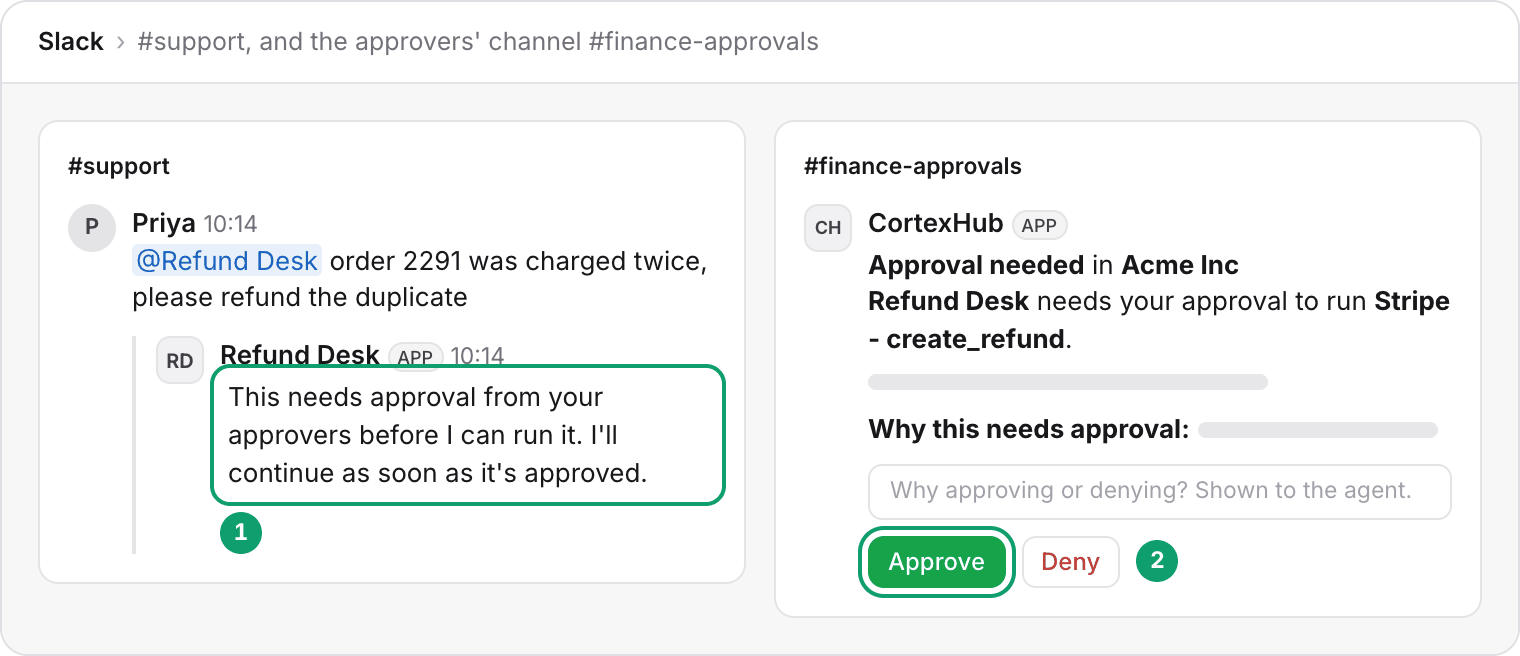
Anyone in the workspace can ask Refund Desk for help. The refund waits for the approvers its policy names.
Anyone in your Slack workspace can talk to an org agent without a CortexHub account; Slack tells CortexHub who they are. Who approves comes from the policy that held the call: the person who asked when it is accountable to the member, otherwise your org admins on the Approvals page, or the group or people it names. A routine run has nobody to ask, so a call accountable to the member goes to an org admin, with the reason on the approval. Owners and admins are told when a routine finishes or stops.
The agent's routine pages use its name, and Run now starts a routine at once. A run's page shows Started manually or On schedule, how long it Took and, when a step waited for a person, the Waiting for approval time beside it. When a run waits on named approvers, an org admin who is not one of them sees who it waits for, read-only. In an emergency the admin can select Override as admin and decide with a written reason, which is recorded and sent to the approvers and the org owners (see When an org admin overrides named approvers). A run that checked and found nothing to do reads Checked, nothing needed, and What it learned lists what the run added to the agent's Brain.
Go deeper
- Org Agents: runtimes, credentials, Slack and routines.
- Admin quickstart: a short path to a first org agent in Slack.