Step 4: Connect Slack and choose where approvals go
A call that needs approval needs someone to ask. A policy can ask the member the agent works for, or your org admins, who approve on the Approvals page or wherever else you choose to reach them. A policy can also name a group or specific people instead. This step sets up both channels.
Connect Slack
Connect Slack once for the whole organisation. It then carries approvals, notifications, chat with co-workers by direct message, and your org agents as named bots.
- Open Settings -> Integrations -> Slack and select Connect Slack.
- Approve the CortexHub app for your Slack workspace. Slack is now connected. A Slack workspace connects to one CortexHub organisation.
- To put org agents in Slack under their own names, open the Named bots card, paste a Slack App Configuration token once, and select Enable named bots. CortexHub rotates the token for you, so you never paste one per bot.
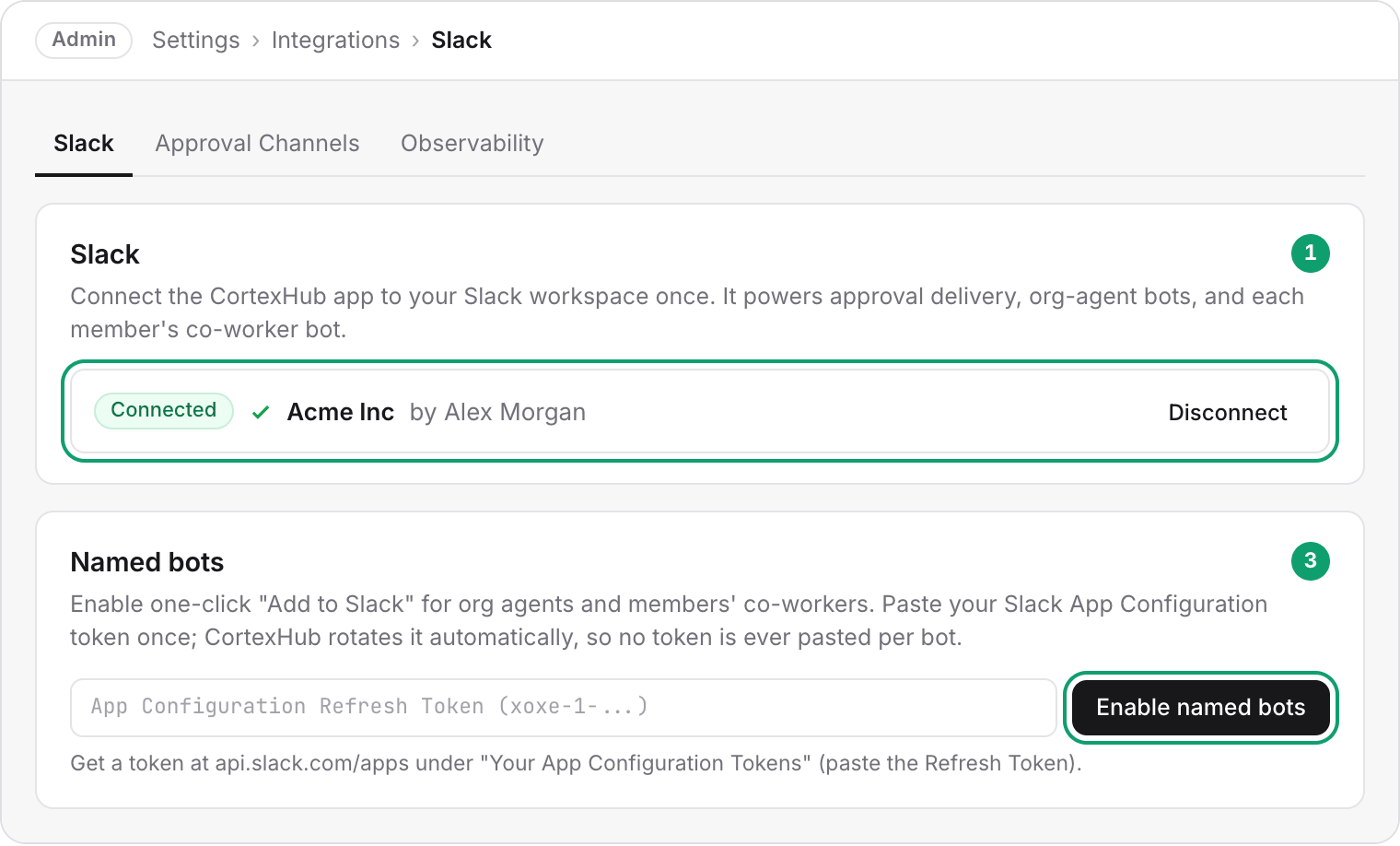
Slack connected for Acme Inc; paste the token once and select Enable named bots.
Where org admin approvals go
Approvals that ask org admins go to one default destination, set on Settings -> Integrations -> Approval Channels:
- A Slack channel, such as #ops-approvals. Anyone in the channel can approve or deny from the card, without a CortexHub account, and the decision records who pressed.
- The Approvals page, built in, where any org admin decides. It is always there, and it is the destination when nothing else is set.
- An approval endpoint: a signed webhook to your own system, which calls back with the decision.
One custom destination (Slack or webhook) is active at a time, and Reset to inbox returns to the built-in inbox. A single rule, toolkit decision, tool override or argument rule can also send its org admin approvals to a specific Slack channel, for example finance actions to the channel your finance leads watch.
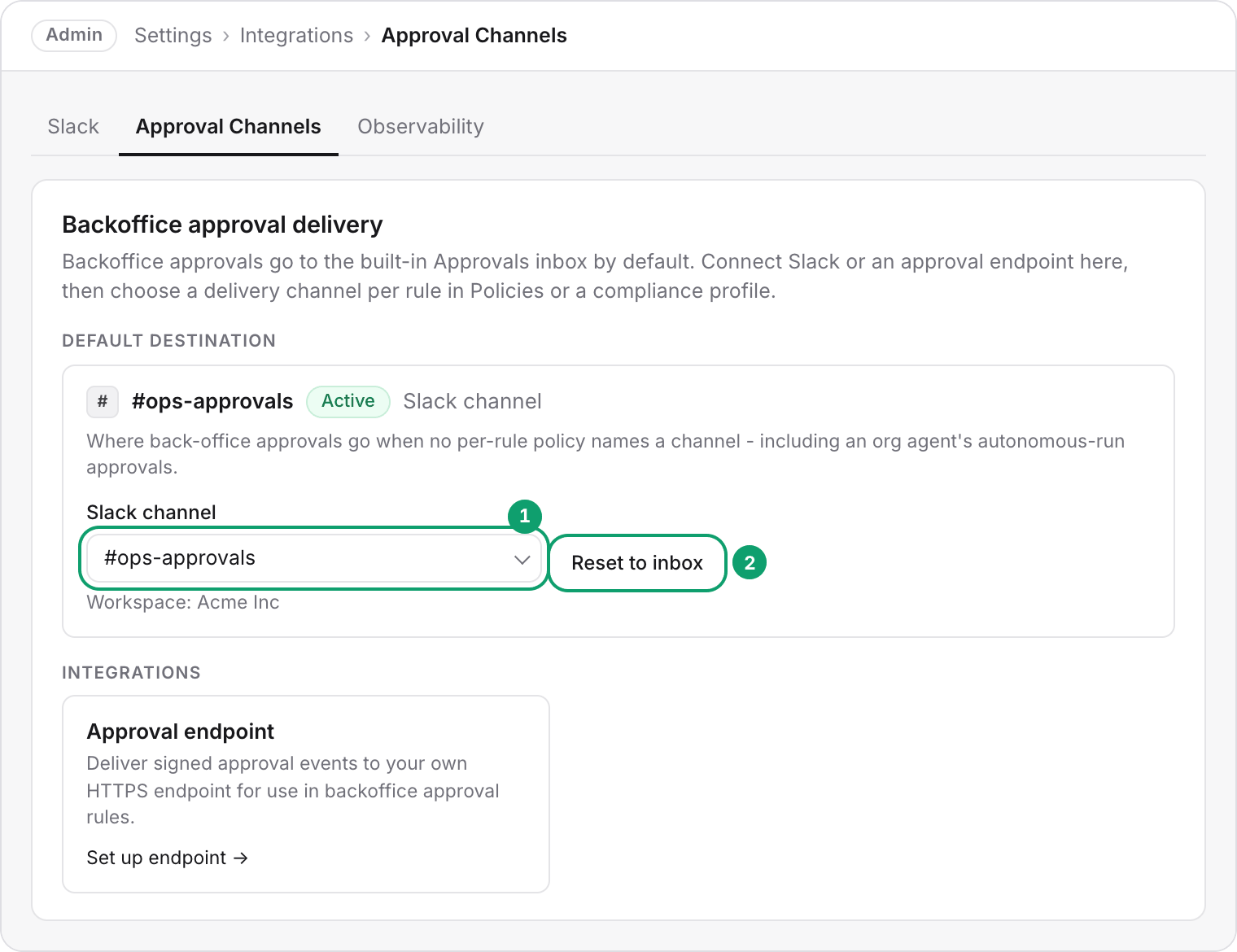
Org admin approvals routed to a Slack channel.
Where members' approvals go
When a policy asks the member, a chat they have open shows the approval in the conversation. For work running in the background, such as a routine, each member chooses where approvals reach them under Settings -> Approval channels in the account menu (see For your team).
Whoever decides an approval is also told it is waiting: in the bell, and by email unless a Slack DM or mobile push already reached them (Approval requests under each person's notification settings). The Approvals item in the sidebar counts what waits on you, and ten minutes before an approval expires the people who decide it get one reminder.
Under Settings -> Notifications, choose how alerts reach owners and admins.
Go deeper
- Integrations: Slack, approval channels and observability export.
- Policies and approvals: approval routing in detail.