For your team: work with your co-worker
Admins: forward this page to your team when you invite them.
Your space
Welcome to CortexHub. You have your own AI co-worker that works in the tools you already use, remembers what matters to you, and asks before it does anything important. Everything it does follows your organisation's rules, so you can hand it real work.
Your sidebar has everything you need: New chat, then Approvals, Routines and Activity, then your agents, then your Brain, Skills and Files. Settings you set once live in the account menu at the bottom.
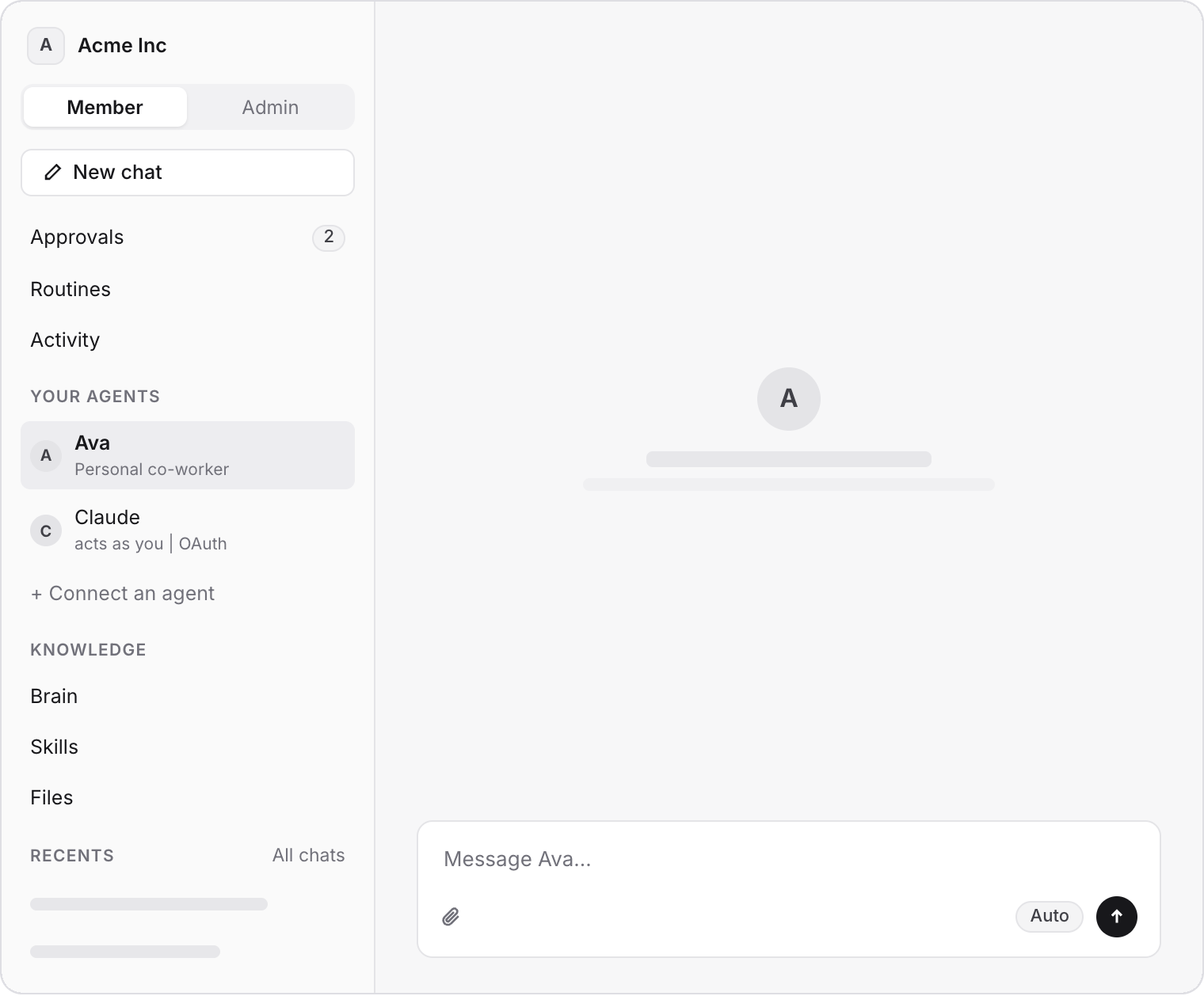
What you do with your co-worker is yours. Your admins see which agent acted, the rule and what it cost, never your chats, your Brain or your files.
Set up your co-worker
- Select Create your co-worker in the sidebar.
- Give it a name and, if you like, an avatar. Leave the model on Automatic: CortexHub picks the best model for each request from the ones your organisation allows.
- Select Create co-worker. You can change the name, avatar and model later in its Settings.
If Create your co-worker is not in your sidebar, co-workers are not enabled for your organisation, or it has no credit left and no payment method; ask your admin. Each member has exactly one co-worker, which keeps one Brain across all your work: variety comes from routines and skills, not extra co-workers. You do not write it a job description; it learns how you work from your chats, Brain, skills and routines.
Your co-worker's settings
Open your co-worker, then Settings:
- Identity: its display name and avatar, as shown in chat, meetings and the sidebar.
- Brain: the Model that runs each message and the Brain model for routines, jobs and meeting reasoning. Automatic picks a model for each request from the models your organisation allows, using benchmark scores refreshed nightly, and moves to another allowed model if a provider is unavailable. Choose a specific model for consistency; Model details shows its benchmark ranks and limits. If an admin turns off the model you chose, your co-worker switches to Automatic. In chat, the composer's model picker (default Auto) applies to that conversation.
- Run state: Pause stops it taking new messages and routines until you select Resume; your Brain and settings are untouched. Stop ends any live session and idles it until you resume. If an admin or a guardrail paused it, an admin resumes it from Agents.
Reaching a spend cap does not pause your co-worker: model calls stop until the window resets.
Connect your tools once
Open the account menu, then Settings -> Connections. Select Connect on each tool you use, such as Gmail, Google Drive or HubSpot, and sign in. You only do this once: your co-worker and any assistant you connect, such as Claude, all use the same connection. You only see the tools your groups allow.
Work in chat
- Select New chat and say what you need in plain language. Past conversations are kept; use Search conversations to find and continue one. To work from a document, attach it with Upload new file or Choose from Files.
- Your co-worker picks the tools it needs and shows each step, with why it took it. Steps name each tool with its toolkit, such as "Looking up the HubSpot tools" and "Calling HubSpot: update_deal".
- When a step needs your approval, a Needs your approval card appears with what the agent wants to do, every argument of the call, when the request expires, and Approve and Deny. Nothing runs until you decide. To deny, write why in the note: your co-worker gets the reason and remembers it for next time.
Your co-worker can also make things for you: documents, decks, spreadsheets, charts and interactive dashboards, styled with your organisation's brand kit once your admins publish one. They appear in the chat; select Save to Files to keep one, or ask your co-worker to save it. For analysis it can run code in a secure sandbox with no network access, and it can generate images and short videos and search the web when your organisation allows it. To talk to a shared org agent instead, pick it in the composer's agent picker, or open it under Org agents in the sidebar. Every member can chat with an org agent unless an admin limits it to some groups. See Built-in tools for everything your co-worker can do without connecting anything.
Approvals, and talking to your co-worker in Slack
Approvals lists every request waiting on you under Waiting on me, and the sidebar shows how many there are; open one to Approve or Deny it. A request waits on you when one of your agents asks you, or when a rule names you as an approver. You are also told in the bell and by email (unless your approval channel already reached you). Requests from chats you have open appear in the conversation. Requests from work running in the background, such as a routine, also reach you on your approval channel.
The request shows what the agent wants to do and every argument in full, the reason the agent gave, the rule that held it and when it expires. To deny, write why in the note; the reason goes back to the agent and becomes a lesson in its Brain. When several calls wait together, Approve these N calls covers only the calls listed, and a call that cannot be undone always asks on its own.
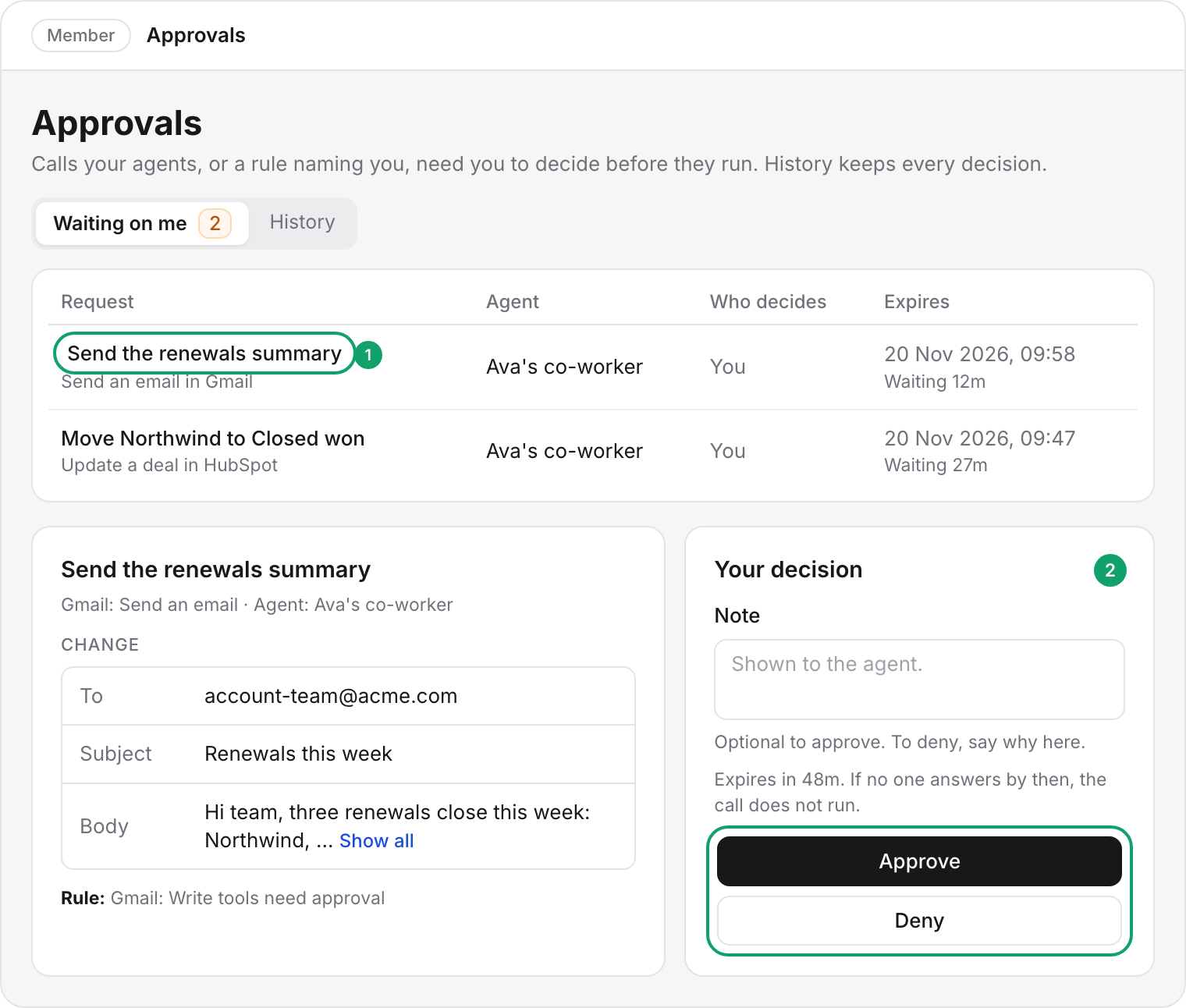
Open a request waiting on you to approve or deny it.
- Open the account menu, then Settings -> Approval channels.
- Choose Slack and connect your Slack account. Background approvals now arrive as a direct message you can approve or deny in place.
- Once Slack is connected, you can also message your co-worker in Slack directly and it replies there, with the same tools, memory and rules.
An approval covers one call. If nobody decides within an hour, the request expires and the action does not run.
Approvals you already decided are under Approvals -> History, with the outcome (approved, denied, expired or cancelled), where the decision came from and how long it took, such as Decided in 1m 44s. A pending request shows how long it has waited (Waiting 12m), and one nobody decided reads Expired after 60m, not decided. An approval covers one call, and a decision cannot be changed afterwards. Approving on the mobile app needs your device's biometrics or passcode. Background approvals reach your approval channel only for runs with nobody in the chat, and only for rules that ask you rather than your org admins; chats always ask in the conversation.
Routines
A routine is work your co-worker does for you on demand or on a schedule: a morning brief, a weekly report, an inbox sweep. Routines follow the same rules as chat.
- Open Routines and select New routine.
- Write the instruction as you would brief a colleague: what to do, where to look and what a good result looks like.
- Under How it runs, choose Manual or Scheduled. For a schedule, choose how often it Repeats, the Timezone and the Time of day (Runs at for a routine that does not repeat).
- Turn on Notify me when a run finishes or Email me the result if you want them, then save.
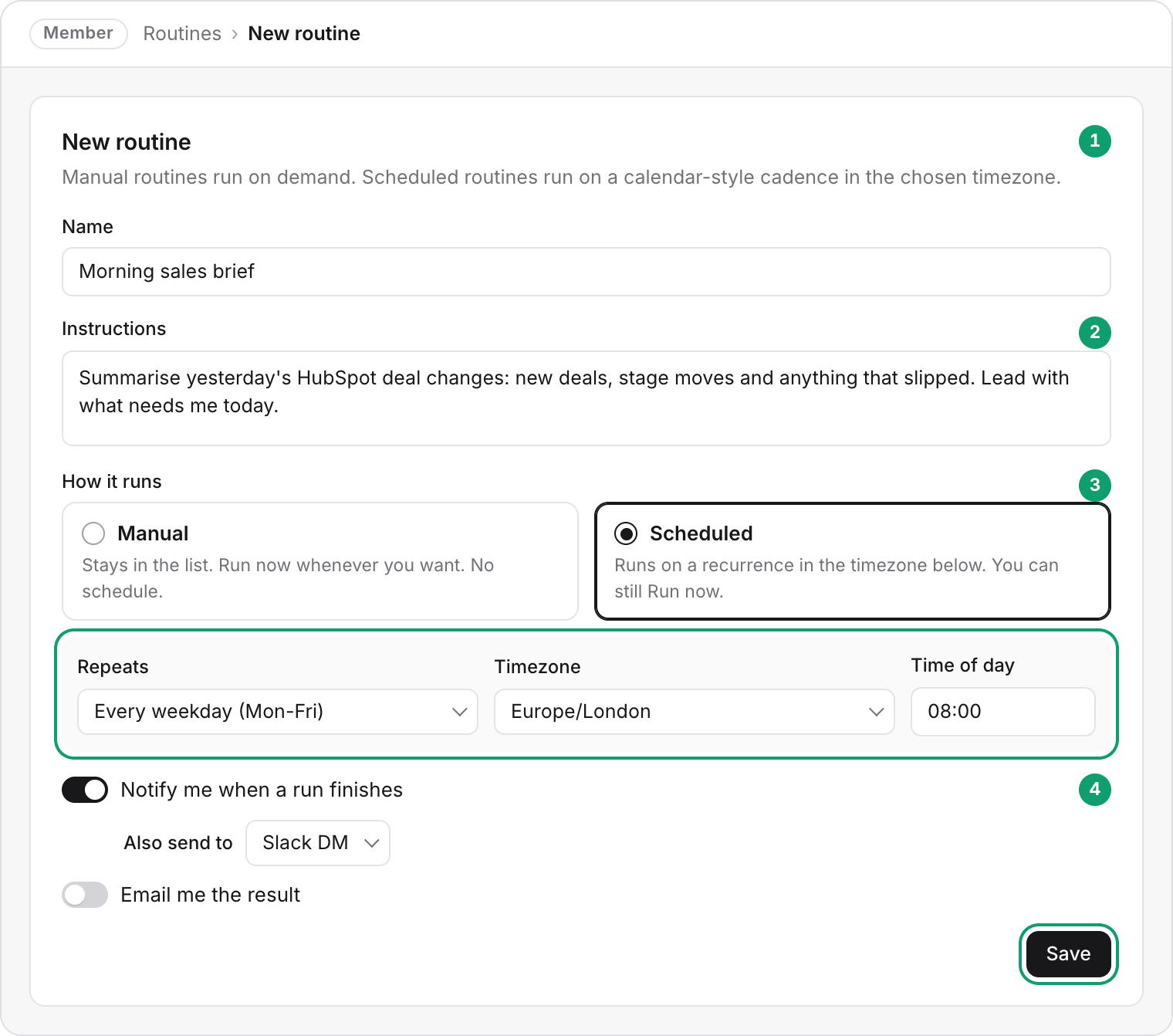
A weekday sales brief at 8:00, with a Slack DM when it finishes.
Use Run now to run a routine immediately, and History to see past runs. If a step needs approval, the run waits for you and then carries on from where it stopped. Each run is told how many times the routine ran before and what those runs changed, so it does not guess, and it always checks your tools again rather than skipping work an earlier run or a memory says was done.
Open a run to see how it started (On schedule or Started manually), how long it Took, its steps and its cost. When a step waited for a person, Waiting for approval shows how long, next to Took. While a run is paused for you, it reads Paused for your approval with Approve and Deny; when it waits for someone else, it reads Waiting for approval.
While a run works, Found so far shows each finished step's result, and tool results read as labelled fields and tables, with Raw for the exact value. When it ends, the final answer sits under the outcome. Show reasoning shows the agent's thinking in full; otherwise each step shows one line of what it is doing. What it learned lists what the run added to the Brain, including any lesson from a decision a person made on it.
A run ends in one of three ways: it did the work, it could not finish (it says why), or it checked and nothing needed doing, which reads Checked, nothing needed in a neutral chip rather than as a failure. Its notification says the same.
The Brain
Your Brain is what your agents have learned working with you: the people and projects you work with, decisions, preferences, and what they read in your files. It grows on its own, and every agent acting as you shares it, so you never explain the same thing twice.
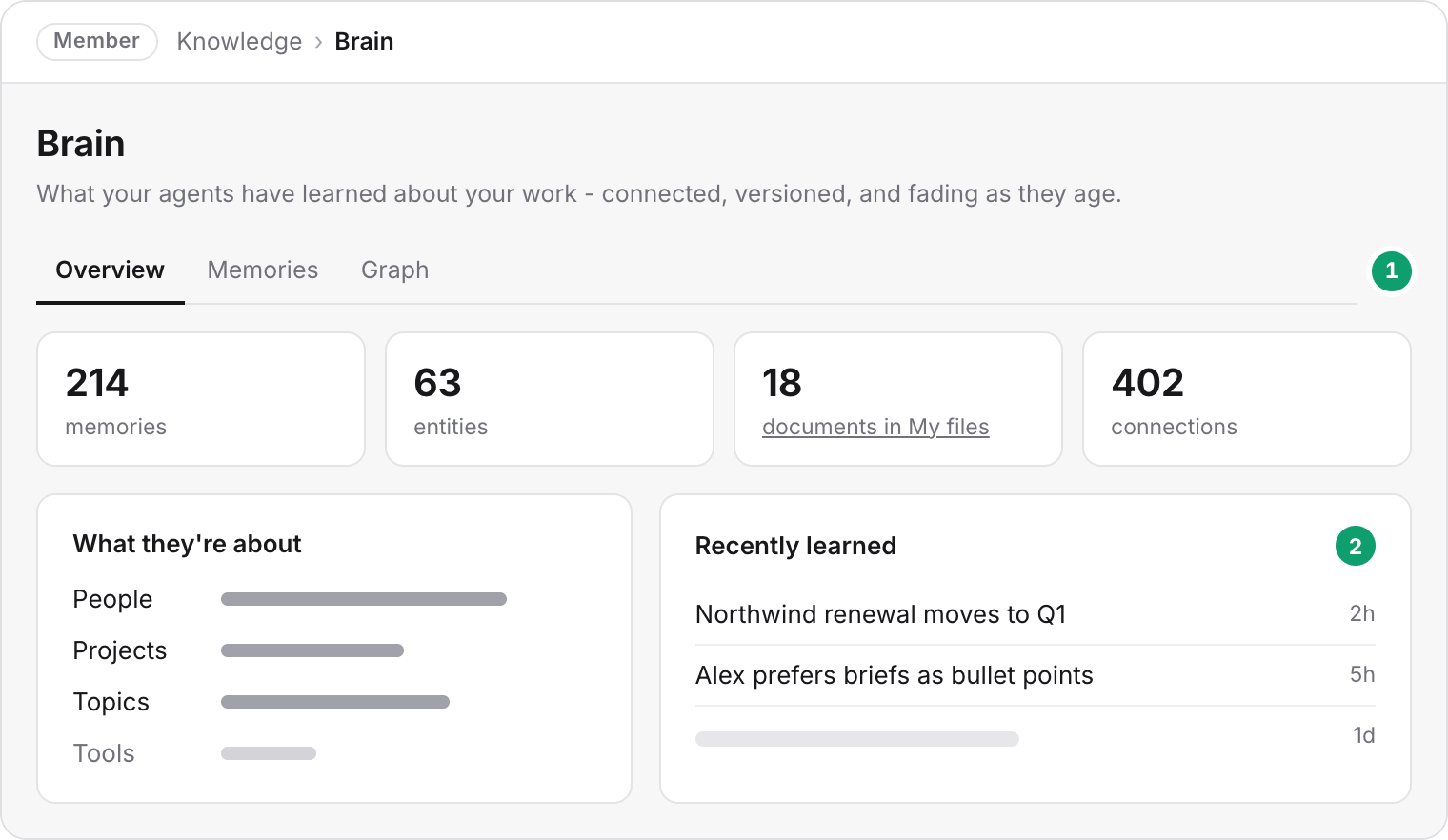
The Brain overview, with what your agents learned recently.
Overview summarises what it knows, Memories lists every memory, and Graph shows how people, projects and topics connect. Open a memory to Edit it, Forget it, or pin it as Keep always on so your agents always have it in mind.
Skills and files
A skill is a way of doing a task: your house style, a review checklist, a refund playbook. Your co-worker picks the right skill on its own, from your personal skills, the skills your organisation publishes and CortexHub's built-in skills. Add your own under Skills, and turn off any skill you don't want your co-worker to use.
Files holds your documents, and everything your agents save for you. Every save is kept as a version, so you can see who saved it, download it or restore it at any time. Use Share to give a colleague Viewer or Editor access, and their co-worker can use it too. Your organisation's shared files are available in the folders open to your group, and your agents open the same ones.
Files works like a file explorer, with a folder tree on the left:
- Upload many at once: choose several files or a whole folder, or drag them onto the page. A dropped folder keeps its structure, and one failed upload does not stop the rest.
- Organise: create folders (up to 5 levels deep), rename and move them, and move files with Move to or by dragging onto a folder. Deleting a folder deletes what is in it.
- Describe a folder: a folder's description, such as "Current security evidence, shareable", tells agents what it holds; they see each file's folder and its description.
- Search in a folder: with a folder open, search covers that folder and its subfolders.
A shared file appears under Shared with me for your colleague, and your edits show up for them straight away. Remove someone under People with access to end their access at once; only the owner can share a file. Your agents can delete your own files (this asks for approval by default), never the organisation's shared files, and deleting a file also removes what it taught the Brain.
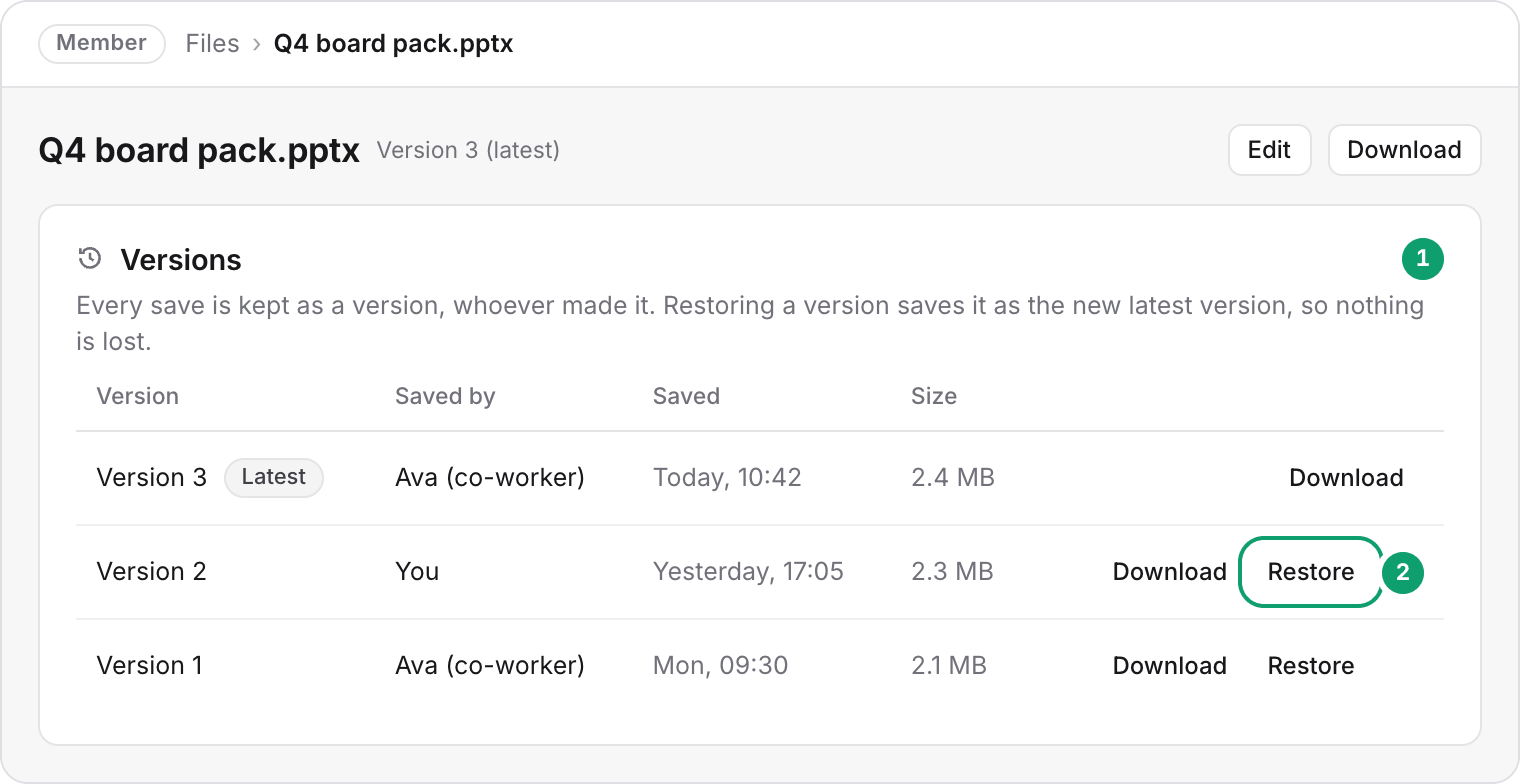
Every version of the board pack, whether Alex or Ava saved it.
Video ads
Your co-worker can make short animated video ads and social clips, up to about a minute, in 9:16, 1:1, 4:5 and 16:9. Ask in plain words, for example "a 30 second ad for our new invoice feature, 9:16 and 16:9, captions on".
- The ad is saved as a file and plays in the chat with its voiceover, music and captions; the format buttons switch formats, and the same player opens from Files.
- Ask for changes ("shorter intro", "a calmer voice") and it saves a new version you can compare or restore under Versions.
- Pick a format under the player and choose Download MP4: your browser makes the video in a few seconds. Agents share the ad; you download the MP4.
- Put your logo, colours and product images in a folder (for example
Marketing/Brand) in the same Files and the agent uses them. - For realistic footage, ask for "real people", a spokesperson or product shots. Your co-worker asks what it needs, then plans one video with a fictional actor who stays the same throughout and shows you the plan card: the clips, the script, the exact text it sends to the model and the estimated cost. Nothing is made or charged until you press Start; a longer video is drafted cheaply first, and you select Render final when it looks right. You get one finished video in your files. People in generated footage are always fictional. The video is marked as AI-generated in its file data; a visible label appears only if your admin turns it on. It needs a video model your organisation has enabled, and it works in chat, not in routines. See Media generation.
- The voiceover, each generated image and each video are billed as LLM usage on the agent.
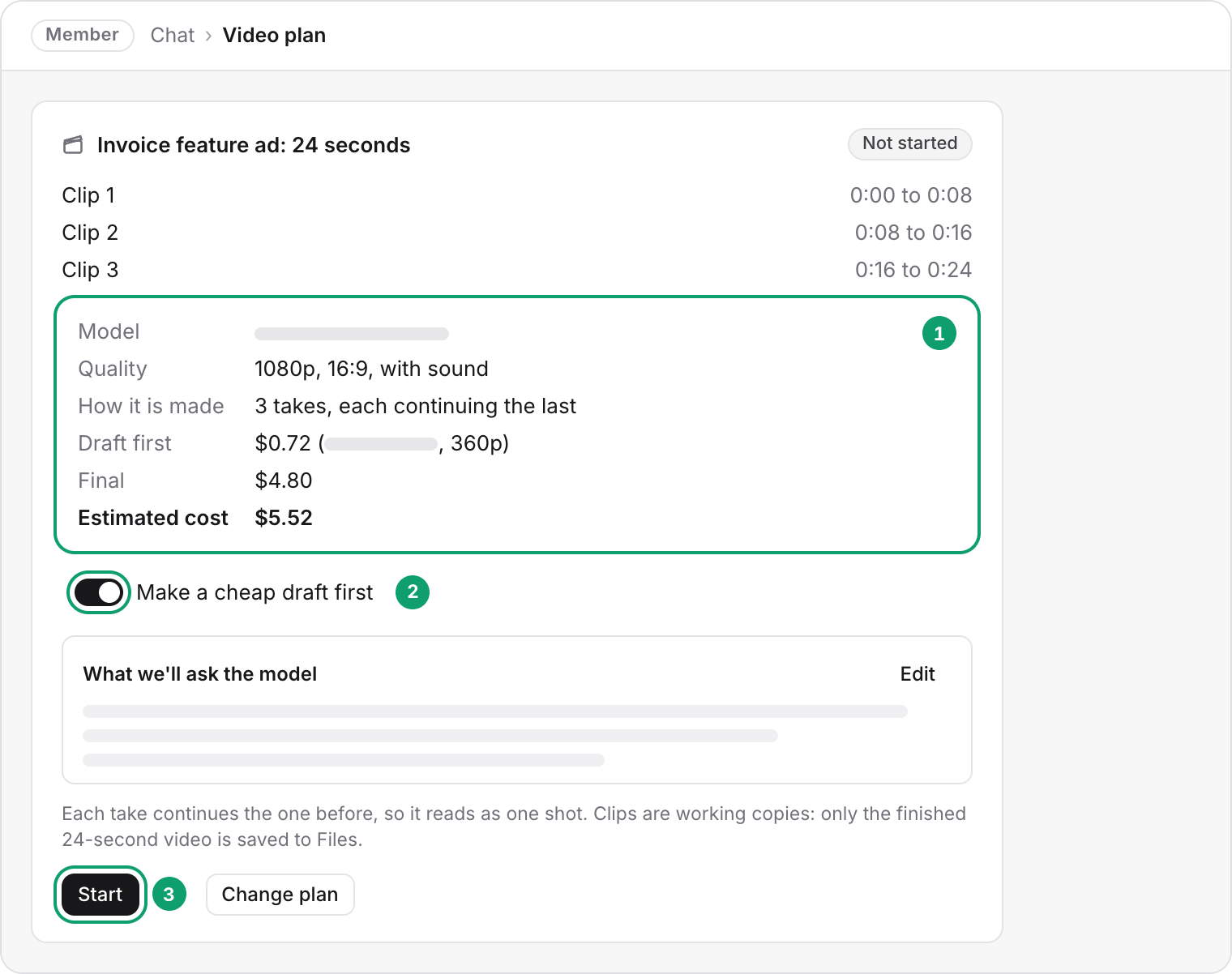
Check the plan and the estimate, then press Start. Nothing is made or charged before.
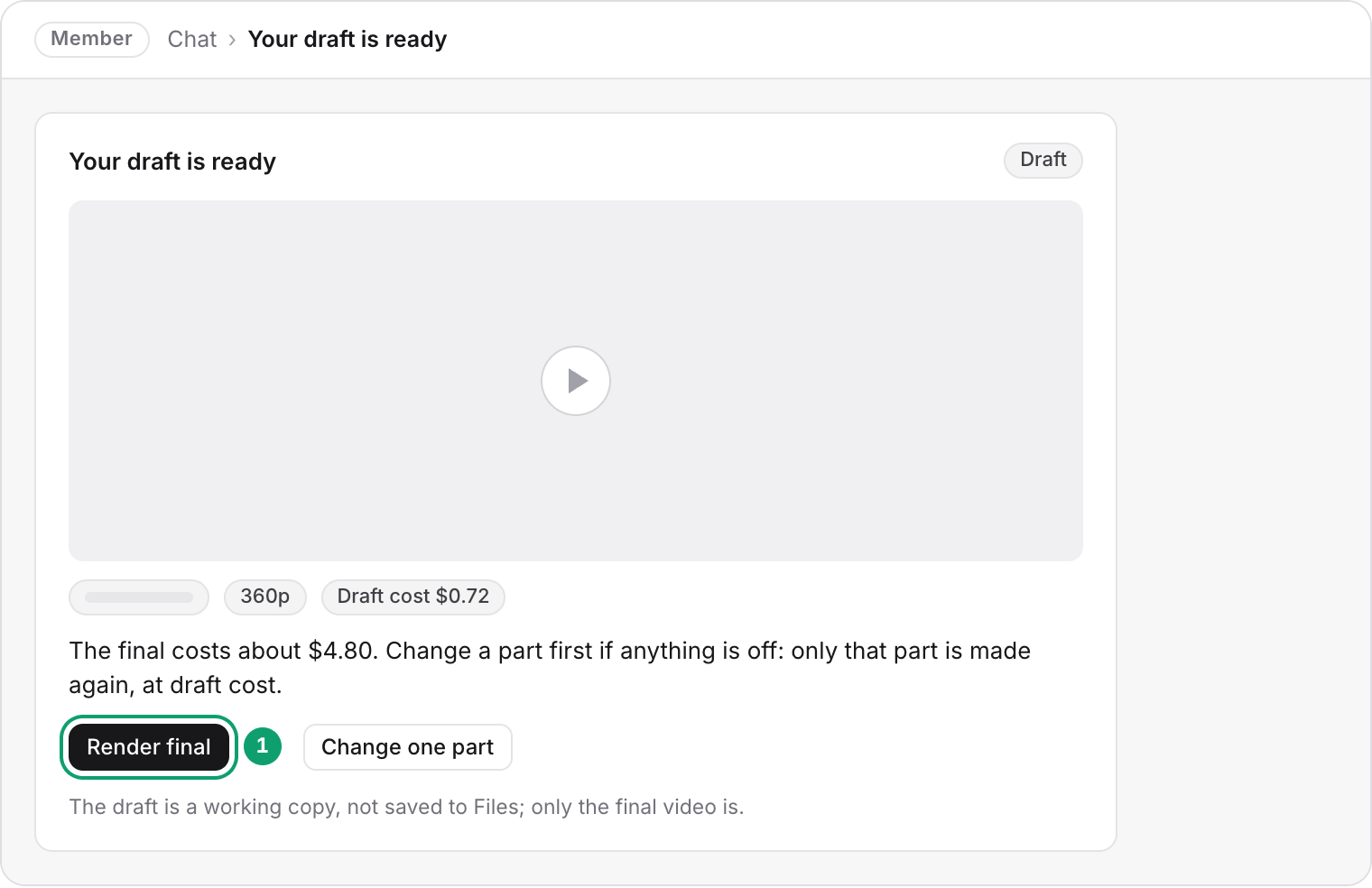
When the draft looks right, select Render final.
Use Claude or ChatGPT with your tools and memory
- Select Connect an agent under Your agents and copy the endpoint.
- In Claude, ChatGPT or another MCP client, add CortexHub as a remote MCP server with that endpoint.
- Sign in and consent in the browser window that opens. The assistant now appears under your agents.
Your assistant now works with your connected tools, under your organisation's rules. It starts with read-only access to your Brain, files and skills. To let it save memories and files too, change its access on its page. See Connect an AI app for step-by-step instructions per assistant.
You can also ask your assistant for an image or a video through CortexHub. An image comes back straight away with a link; a video is planned with an estimated cost for you to confirm, then made in the background and saved to your Files. A draft, if you ask for one, deletes itself after 24 hours. See Media generation.
See what your agents did
Activity covers everything acting as you: Overview, Runs, Sessions (open one for its full trace), Usage and Threats. Open any agent under Your agents for its own Overview, Runs and Sessions.
Questions? Select Ask CortexHub in the app, or ask your CortexHub admin.