Step 3: Decide who can do what
Two questions, answered in two places:
- Groups & access answers which tools can this team's agents use at all?
- Policies and each group's Rules tab answer when must a call wait for a person, and what is never allowed? Each published toolkit then has a decision for its read, write and destructive tools, any single tool can be made stricter, and an argument rule can keep a toolkit's calls to the accounts or projects a team works on.
CortexHub classifies every tool you connect (read, write or destructive, whether it moves money, and what data it touches) and sets nothing else. Every decision is yours. Start simple: one group per team, the rules Policies recommends for the tools you have, and the starting toolkit decisions.
Groups grant access
Groups & access has two kinds of group. Member groups cover each member's co-worker and the assistants acting as them; everyone starts in All staff. Agent groups cover org agents; new ones start in All agents.
- Open Groups & access and select Create group. Name it after a team, for example Support or Finance.
- On the Members tab, select Add members.
- On Toolkits & Tool Access, select Publish toolkit and choose a toolkit. Its page opens as Set up and the toolkit's name, marked Not published yet, until you publish it.
- On the toolkit's Policies tab, choose what is Available to agents: a kind of tool (read, write or destructive) for the whole group, or single tools in the Tools table.
A member is in exactly one group, and uses what that group is given; adding them to another group moves them. Each group also has a Web Access tab to allow or block web lookups by domain, and a Guardrails tab for extra redaction patterns.
Org-wide rules: what every group must follow
On Policies, Add a rule builds one sentence:
When a tool that moves money as a payment then Require approval accountable to Finance only when money over 10,000.
| Part | Choices |
|---|---|
| When a tool that | reads only, writes internal state, sends externally, moves money (or only as a payment, refund, payout, transfer or charge), exports data, exports health, card or secret data, exports personal data, is destructive, touches PII, touches PHI or PCI, touches secrets, is irreversible, or has no classification yet and changes something |
| Then | Require approval, or Deny |
| Accountable to | the member the agent works for, org admins (on the Approvals page, at your default destination or in a specific Slack channel), a group such as Finance, or specific people |
| Only when | always, or money, recipients or records over a number |
Because a rule describes what a tool does rather than naming it, "payments over 10,000 need Finance" covers your payments toolkit today and any payments toolkit you add later. Governs N tools now lists the tools it covers before you select Add rule.
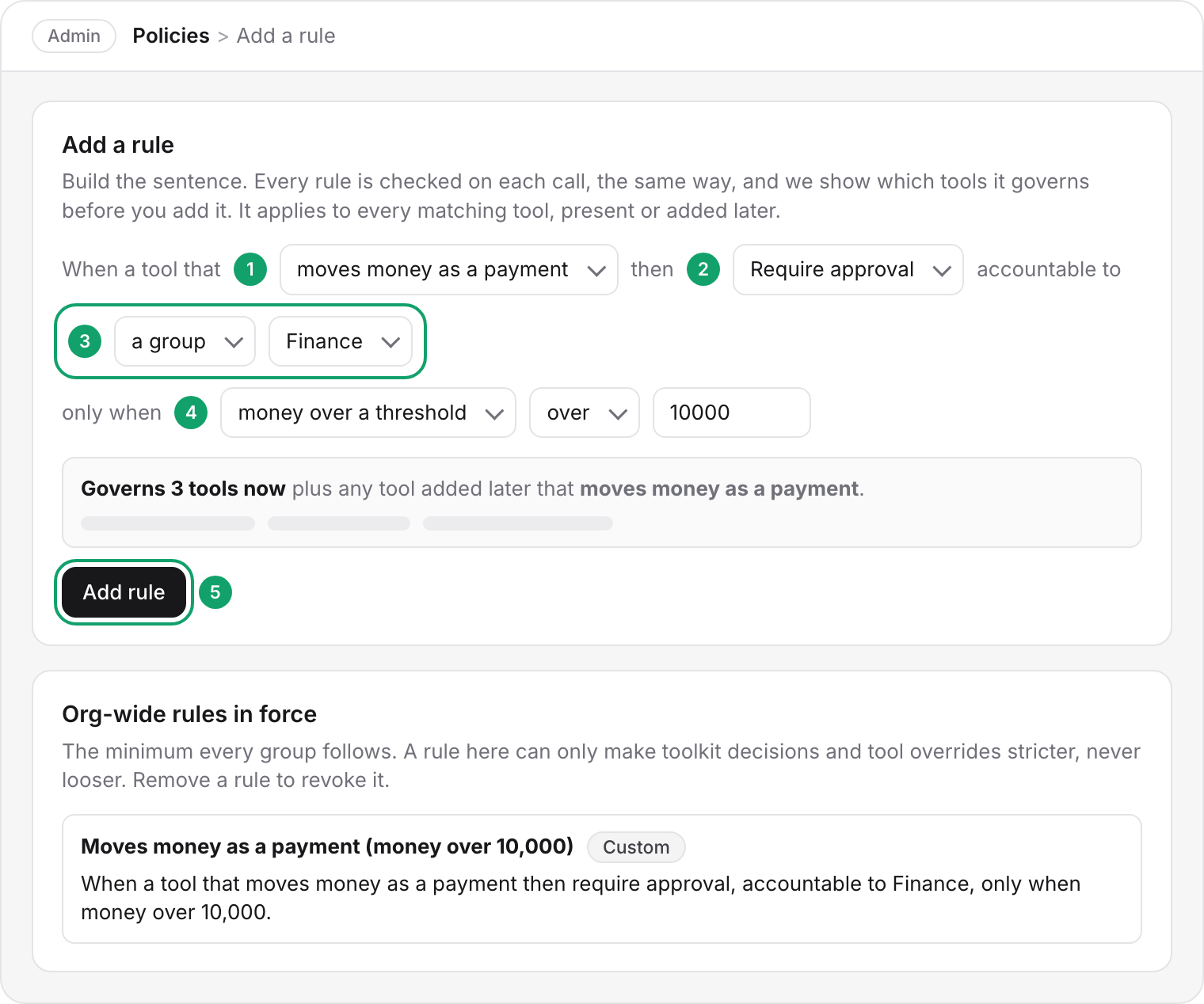
Build the sentence, check what it governs, and add the rule.
Start from the recommendations
A new organisation has no rules: CortexHub does not add any for you. Instead, Recommended for your toolkits on Policies suggests rules based on what your connected tools do, for example Refunds, Destructive tools or Exports of personal data. Each lists every tool it covers with its toolkit, such as "3 tools: Stripe: create_refund, Shopify: refund_order, Chargebee: refund_invoice", including built-in Brain and Files tools when it catches them, and the suggested sentence. Select Enable to open the builder with that kind of tool and the suggested decision, choose who it is accountable to and when it applies, and add it. The rule keeps the recommendation's name, such as "Refunds need approval". Select Dismiss for one you do not need; it shows again when a new tool of that kind is connected, and Undo brings it back. A kind a rule already covers shows Covered by:. Each group's Rules tab has the same card for that group's toolkits.
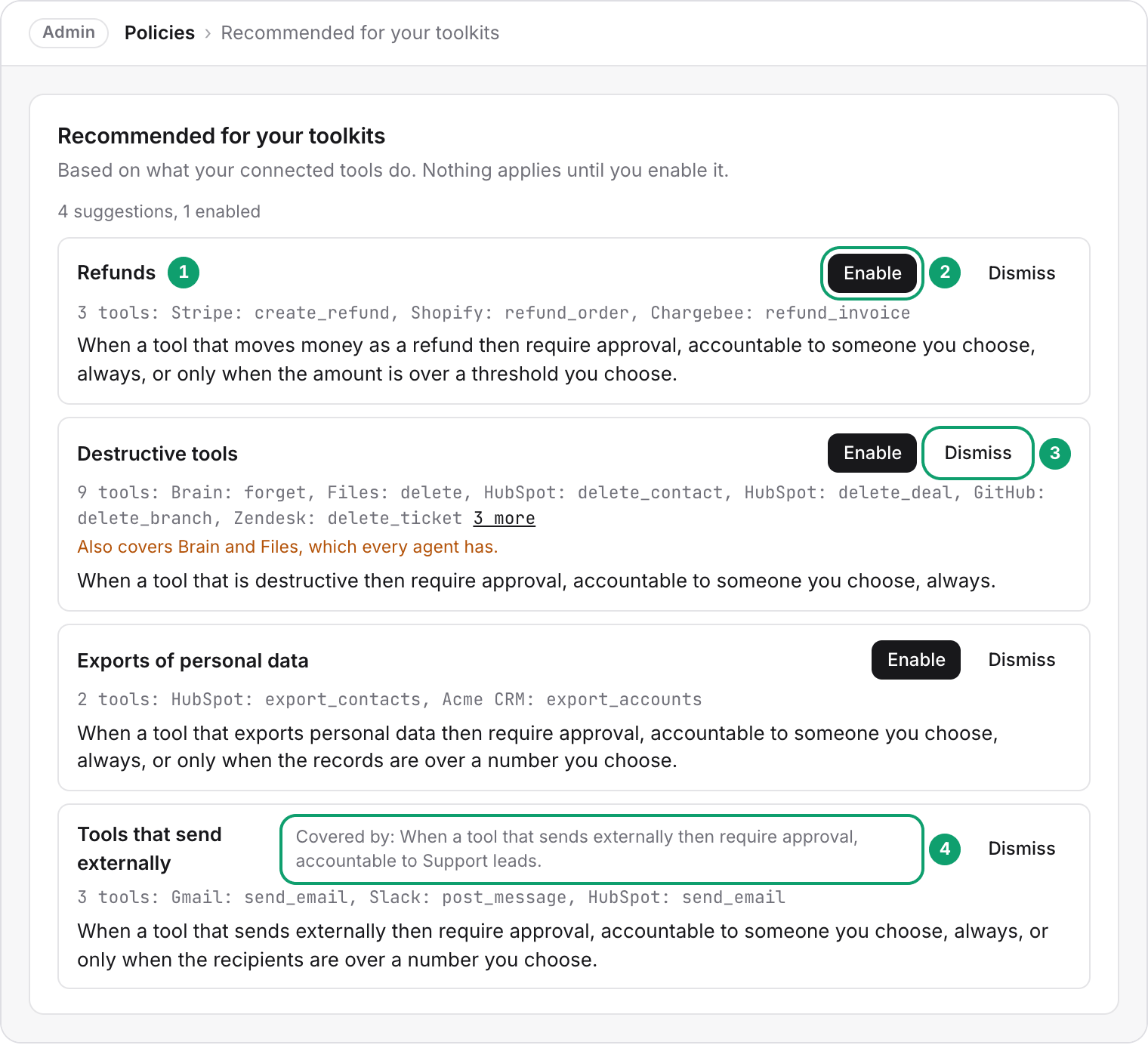
Suggestions from what your connected tools do. Nothing applies until you enable one.
A call that no decision covers is blocked, never allowed. A tool CortexHub has not classified yet has no Read, Write or Destructive profile, so no toolkit decision covers it: it shows Not set: blocked until you set one. Either select Override decision on the tool and choose any decision for it (Permit, Require approval or Deny), or add a rule for "has no classification yet and changes something", which makes the calls of every such tool ask first.
Group rules: what one team must also follow
Each group's Rules tab has the same builder, for that group's agents only, for example "Marketing can never delete anything". A group rule only adds to the org-wide rules; it can never relax them. To give one org agent its own rules, put it in its own agent group and give that group rules.
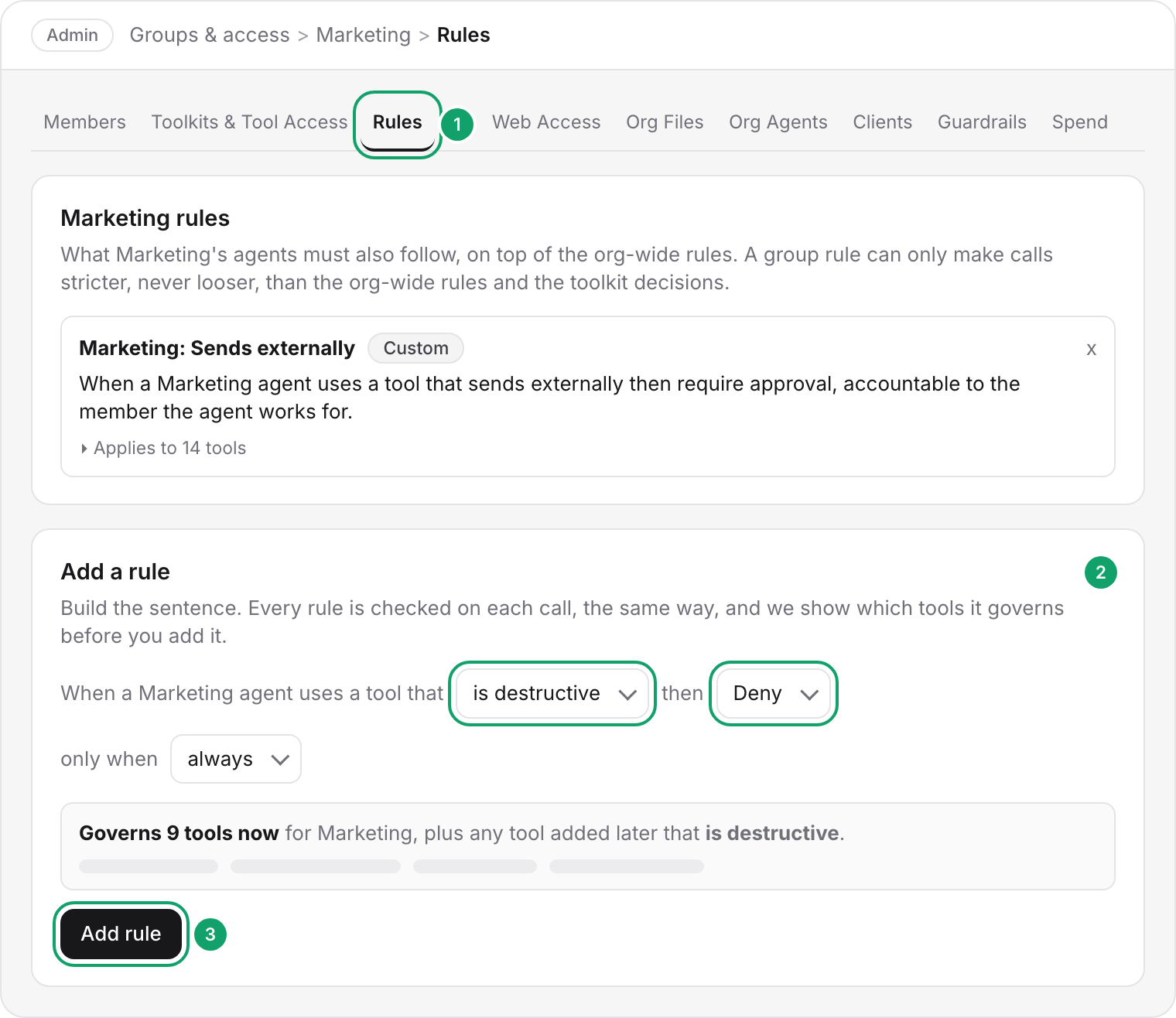
A group rule that blocks destructive tools for Marketing.
Toolkit and tool decisions
Open Groups & access -> a group -> Toolkits & Tool Access -> a toolkit -> Policies.
- Read, Write and Destructive each have one decision for the group. They start safe: Read Permit, Write Require approval and Destructive Deny (the built-in Brain and Files toolkits let agents write to their own memory and files, and ask before deleting). Select Edit to change it and who approves. In an agents group, a starting approval goes to org admins, who approve on the Approvals page, because org agents work for no member; the decision card explains who decides.
- The Tools table shows each tool's final decision for this group, after the rules, the toolkit decision, any override and any argument rule, and Decided by names what set it; a tool no decision covers shows Not set: blocked. What is restricted here counts what asks first, what is blocked and what runs without asking.
- Override decision on a tool makes that one tool stricter, for example:
create_refundneeds Finance's approval only whenamountis over 500. The Tools table then says it in words: "Require approval when amount is more than 500". Dry-run tries sample arguments and shows, in plain words, whether the override applies and what the call would get and who approves. An override can tighten its toolkit decision, never loosen it; on a tool that shows Not set: blocked, it can set any decision. - Argument rules check one argument on every call of the toolkit, for example "Northwind Media only": when
account_idis not one ofACC-1042, deny the call. A rule covers every tool that takes the argument, including tools added later, and a call that leaves the argument out is caught too. Try it shows what a call would get. See Argument rules. - Overrides, argument rules and Dry-run also work on a toolkit you have not published yet, using the draft's own decisions. Review and publish lists each tool override and argument rule before you publish.
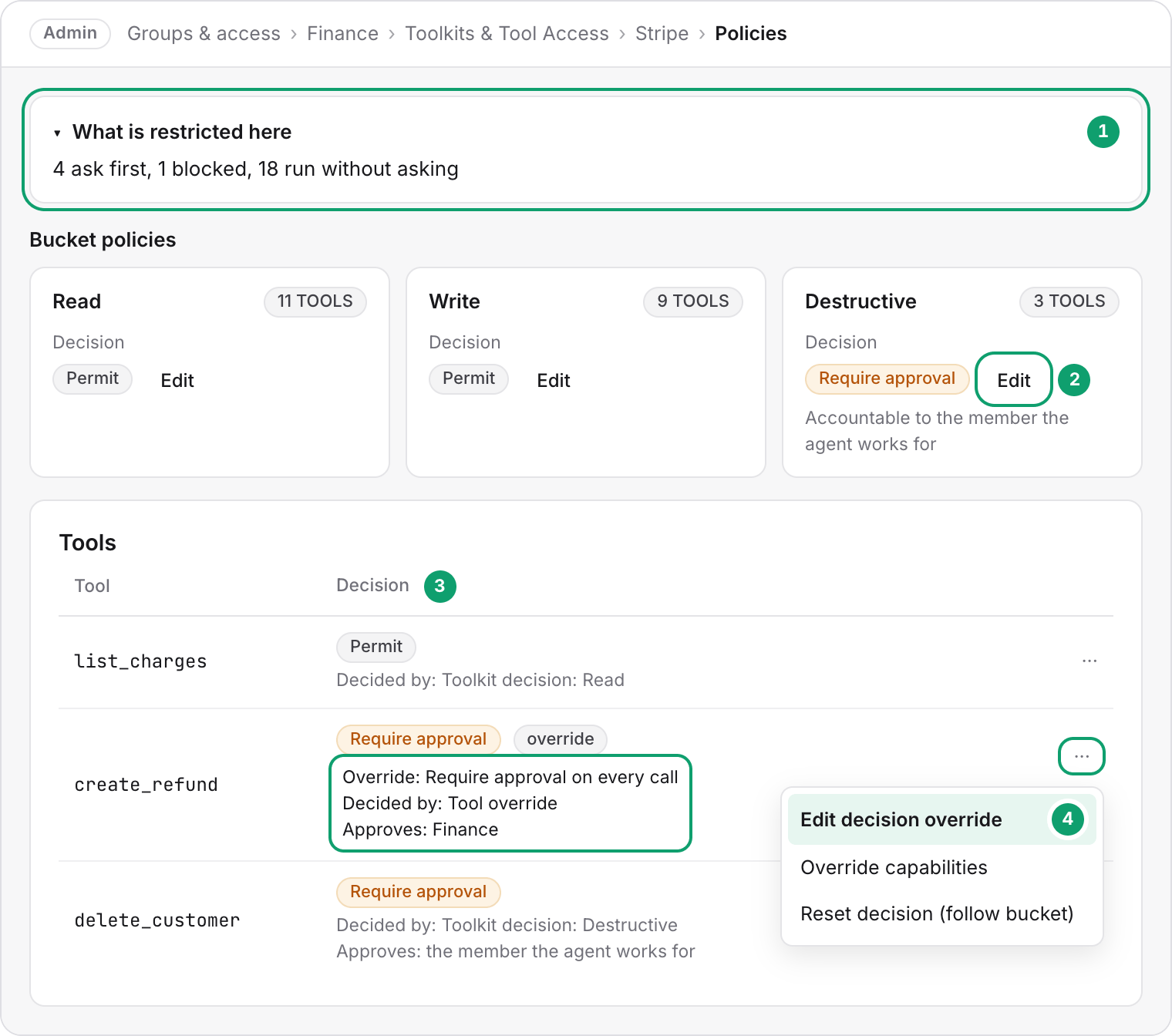
Each tool's final decision for the group, and what decided it.
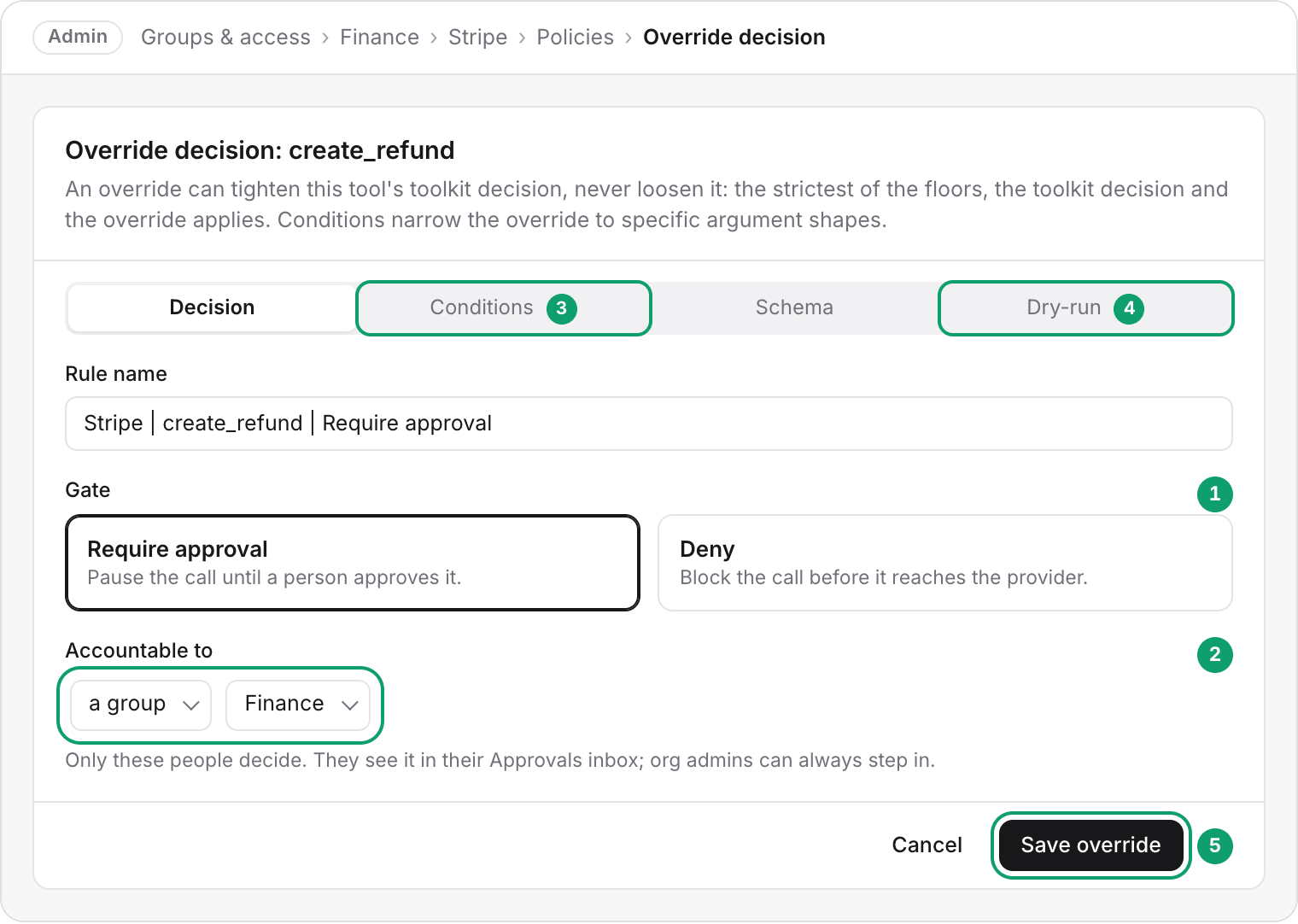
An override can only make a tool stricter.
If a tool's classification is wrong for your organisation (for example, it is marked as moving money but only drafts an invoice), correct it with Override capabilities in the tool's row menu, and every rule follows the correction.
Clients: keep agents on the right client's data
If your team works for clients, list them under Clients with the ids each one owns in your tools, such as account ACC-1042, and choose on each group's Clients tab whether the group works for all clients or only some. A call that mixes clients, or names a client the group does not work for, is blocked. See Clients.
Security defaults
Security holds organisation-wide data handling and runtime guardrails. The defaults are safe, so review them rather than change them on day one: payloads are redacted before they are stored, untrusted content is fenced off from instructions, and agents ask before acting on what they read in an email or document.
Go deeper
- Groups and access: the access model in full.
- Policies and approvals: rules, toolkit decisions, overrides, argument rules, approval routing and the approval lifecycle.
- Clients: client lists and which clients each group works for.
- Guardrails and privacy: data handling and runtime guardrails.