Media generation
The Media generation toolkit lets agents make images and short, realistic videos with sound, using the image and video models your organisation has enabled. Co-workers and hosted organisation agents use it in CortexHub chat, and assistants connected to CortexHub, such as Claude and ChatGPT, use it through the MCP gateway. Images are saved to the agent's files; a video is planned with the member, made once it is confirmed, and saved as one finished file.
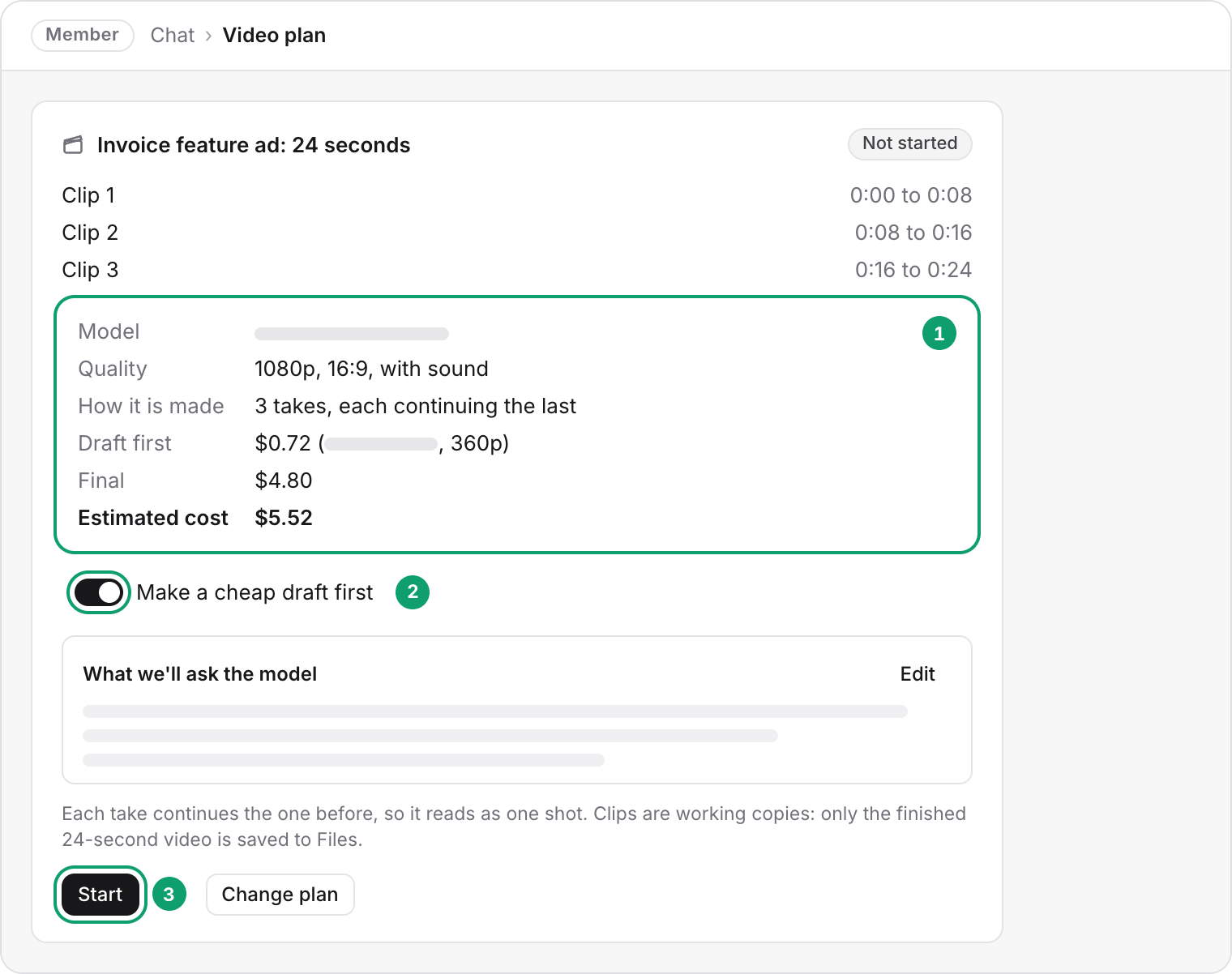
Example. Acme Inc's marketing lead asks her co-worker for "a 15 second vertical clip of a customer opening our delivery box, for Instagram". The co-worker asks two short questions about the setting and the words on screen, then shows a plan card with the timed clips, the exact text it will send to the model, the script and the estimated cost. She presses Start. The finished clip plays on the card and is saved to her files.
What it makes
Ask your co-worker for an image and it makes it. Ask for a video and it shows you a plan; nothing is made until you press Start.
| Option | Images | Video |
|---|---|---|
| Formats | 9:16, 16:9, 1:1, 4:5, 3:4, 4:3 | 9:16, 16:9 |
| Size | 1K or 2K | 720p, 1080p or 4K (the draft is 360p), as the chosen model allows |
| Length | Up to 30 seconds, as one finished video | |
| Brief | Up to 4,000 characters | Up to 4,000 characters |
| Reference images | Up to 6 | Up to 6 |
Models
Images and video work only when CortexHub has an image or video model enabled for the platform and your organisation allows it:
- On CortexHub's models (the default), an admin allows the image and video models under Settings -> Models & budgets -> Models.
- On your own provider keys, an owner or admin adds a key for a provider CortexHub supports under Settings -> Models & budgets -> Model providers, then turns on that provider's enabled image or video models under Settings -> Models.
With no image or video model allowed, the agent says so and makes nothing. A longer video is made as clips that continue one another and are joined into one file. When the member names no model, CortexHub picks one of the allowed models that can make the video and shows the others on the card, with their price, to switch to.
Who can use it
Co-workers and hosted organisation agents, in CortexHub chat, and assistants a member connects (Claude, ChatGPT, GitHub Copilot and other MCP clients, and SDK agents acting for a member). Media generation is in every organisation's toolkits, and every member and agent group gets it unless an admin unpublishes it there. It also needs an allowed image or video model (see Models).
Hosted agents make video in chat only. Routines cannot plan or make video: the agent is told "Video generation isn't available in routines. Ask in chat instead."
From Claude, ChatGPT and other connected assistants
A connected assistant finds the image and video tools through the gateway like any other tool, and CortexHub makes the media. CortexHub picks the model from the ones your organisation allows; the assistant never chooses one, and no result names it.
- An image comes back straight away, saved to the member's Files, and the assistant gets a link to it with its exact cost. A policy can still make image requests wait for approval.
- A video is planned by CortexHub first: the assistant shows the plan and its estimated cost. Making it always needs confirmation. The member confirms it in the assistant where it supports an approval card, otherwise in Approvals or on their approval channel. When a policy sends the call to other approvers, such as Finance or your org admins, those approvers decide instead. The assistant's own text can never confirm a video.
- It is made in the background. The assistant checks on the task and gets a link to the finished video in the member's Files.
- A draft first, if asked. The assistant can ask for a cheap draft before the final. The draft is saved to the member's files with "(draft)" after its title, its file page says This is a draft, and it is deleted automatically 24 hours after it is made, or 24 hours after the final. Making the final needs a second confirmation.
The assistant's own model is not billed by CortexHub. The images and videos CortexHub makes for it are billed to your organisation as LLM usage on that agent, and count toward its spend caps and budgets; an image is refused once a cap is reached.
How it works
- A brief before a costly call. For an image, the agent asks up to three short questions, with suggested answers as buttons, when the request leaves the subject, setting, look, format or words open. For a video, it asks what the request leaves open (length, look, who appears, the script, the logo, the format) before it plans.
- A plan, then Start. The plan card shows the title and length, each clip with its time range and script line, the model and quality, how it is made, and the estimated cost. What we'll ask the model shows the prompt, and each clip's Exact text sent to the model. Select Edit to change the plan in the chat. Nothing is made or charged until the member presses Start, and only that plan is made: a changed plan, or a start by another member, is refused.
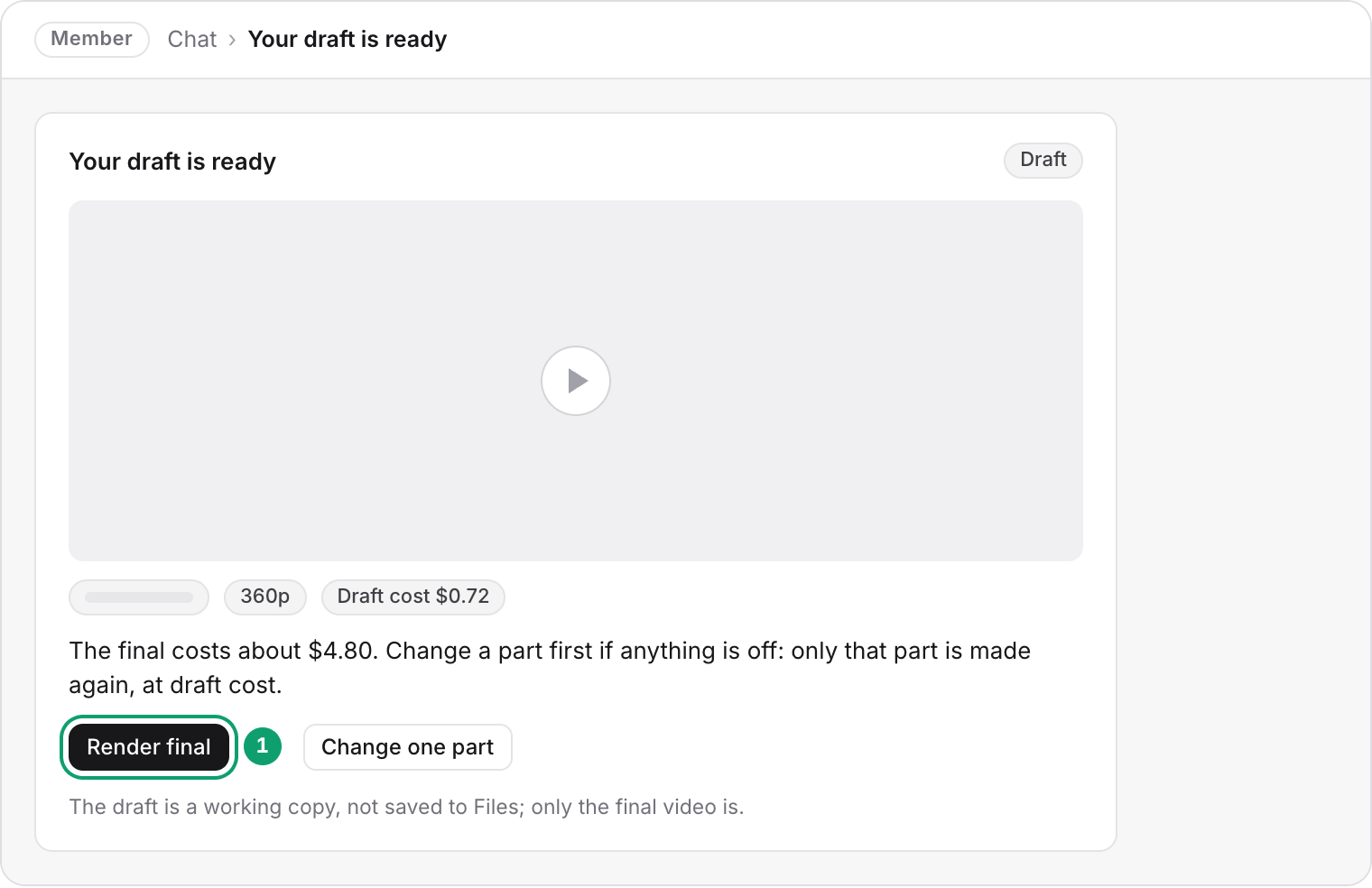
- A cheap draft first. For a video over 8 seconds, Make a cheap draft first is on by default: the same clips are made at low resolution on the cheapest allowed model, and the draft plays on the card. It is a working copy, not saved to Files. Select Render final when it looks right, or change one part first. Turn the switch off to go straight to the final.
- Change one part. Ask for a change to one clip of a draft or a finished video, and the co-worker plans a revision that remakes that clip and the clips after it (each clip continues the one before), and prices only what is remade.
- One finished video. The clips are joined into one MP4 with the same size, frame rate and sound format and no gaps, and saved to the member's files. Clips are working copies: they are deleted when the video is finished, or kept for 24 hours after a stop so the member can continue or save the part made.
- Your real logo. The agent never draws your logo. It places the logo from your published brand kit at the end of the video or in a corner, or on top of an image.
- Saved as files. Each image and video is saved to the agent's files, as a member file for a co-worker or an organisation file for an organisation agent, and comes back as a handle the agent can use in a video ad or pass to another tool.
- When a video cannot be made. If nothing was made because the video model was busy, unavailable, timed out or its provider account needed credit, the card says "Nothing was made or charged" and offers Try again. A brief that moderation blocked, a real person or a request the model refused offers Change plan instead. On your organisation's own model keys, owners and admins are told when the provider account needs topping up.
Safety
These checks run in CortexHub before any model is called. The agent's instructions cannot switch them off.
- Moderation. The brief and the reference images are checked against your content moderation categories (Security -> Runtime guardrails). A blocked brief makes nothing.
- No real people from photos. A reference photo with an identifiable real person's face is refused. The only exception is a member's own likeness, when an admin turns on Members may use their own likeness: the member registers a photo of themselves in their files with Use as my likeness, agreeing to its use, and can stop at any time. It is off by default.
- Marked as AI-generated. Every generated image and video is marked as AI-made in its file data (IPTC digital source type and MP4 provenance), always. A visible "AI-generated" label is added only when an admin turns on Show a visible AI-generated label on images and videos under Security -> Runtime guardrails -> Content moderation; it is off by default.
Cost and spend
Each generation is billed as LLM usage on the agent that made it, and counts toward the agent's spend caps. A longer or higher-resolution video costs more.
- Before you start: the plan card shows the estimated cost, and a plan that would go over the agent's spend cap is refused before anything is made.
- After it is made: the video card shows exactly what the video cost, line by line, including the chat working time of the turns that planned it, with the estimate it was planned at and a link to each call in the session.
- In the chat: the footer under the reply that showed the card includes the video's cost in what that turn has cost.
Control it
| Who | Where | What |
|---|---|---|
| Admin | Groups & access -> a group -> Toolkits & Tool Access -> Media generation | Unpublish the toolkit for the group's agents. |
| Admin | Settings -> Models & budgets -> Models | Choose which of the enabled image and video models the organisation allows. |
| Owner or admin | Settings -> Models & budgets -> Model providers | Run image and video on your own provider keys instead of CortexHub's. |
| Admin | Settings -> Models & budgets -> Budgets and a group's Spend tab | Cap what agents can spend on models, generations included. |
| Admin | Security -> Runtime guardrails -> Content moderation | Add moderation categories, allow members' own likeness, and show a visible AI-generated label. |
| Admin | A group's toolkit Policies tab | Hold the image and video tools of the Media generation toolkit (for example, ask the member first) with a tool override (Override decision on the tool). |