Files
The Files toolkit gives agents a file library: search and read documents in any format (PDFs, Office files, spreadsheets, images, text), list them by folder, save new files or new versions, move them into folders, and delete them.
Example. At Acme Inc, Sam asks his co-worker to "fill in the security questionnaire from Example Ltd using our current SOC 2 evidence". The co-worker searches the organisation's Security/SOC 2 folder with files_search, reads the policies it needs with files_read, writes the answers with Code execution, and moves the finished spreadsheet into Security/Questionnaires with files_move.
Tools
| Tool | Title | What it does | Kind | By default |
|---|---|---|---|---|
files_search | Search files | Finds the passages most relevant to a question, by meaning, with each passage's file, file id and folder. Can be limited to one folder. Returns 8 passages by default, at most 25. | Read | Runs |
files_list | List files | Lists the files the agent can open, with name, folder, type and size, plus the folders and their descriptions. Can be limited to one folder. | Read | Runs |
files_read | Read a file | Returns one file's full text. Text files come back exactly as stored; PDFs, Office documents and other formats come back as their extracted text. | Read | Runs |
files_save | Save a file | Saves a new file in any format, or a new version of an existing one (earlier versions are kept). Can save a new file into a folder, creating missing folders. | Write, inside CortexHub | Runs |
files_move | Move a file | Moves a file into a folder. A move into a folder that already has a file with the same name is refused; the agent saves a new version of that file instead. | Write, inside CortexHub | Runs |
files_delete | Delete a file | Deletes a file, with its versions, its search index, what it taught the Brain and its shares. | Destructive, inside CortexHub | Waits for the member's approval |
Search returns only passages close in meaning to the question; when nothing is relevant it returns nothing rather than unrelated passages. Every call also takes a rationale, recorded on the session trace.
Who can use it
Every kind of agent: co-workers, hosted organisation agents, apps a member connects (Claude, ChatGPT, Copilot and other MCP clients), and your own agents through the SDK. Files is in every organisation's toolkits, and every member and agent group gets it unless an admin unpublishes it there. Its tools are listed directly in the agent's tools/list.
Whose files an agent uses
| Agent | Can open | Saves to | Can move and delete |
|---|---|---|---|
| A member's co-worker, or an app the member connected | The member's own files, files colleagues shared with the member, the files attached to the chat, and the organisation's shared files in the folders open to the member | The member's own files | The member's own files only. Never the organisation's shared files. |
| An organisation agent (hosted or SDK) | The organisation's shared files in the folders open to its agent group, narrowed again by its own Files access | The organisation's shared files, in folders it can open | Only files an agent saved, in folders it can open. Never the files your admins curate for the organisation. |
- Member files belong to the member, not to one agent. Every agent acting as the member works on the same library.
- Organisation shared files are uploaded by admins under Admin -> Skills & files. Agents can search and read the ones in folders open to them; agents cannot delete or move them, and an agent can save a new version only of an organisation file an agent saved.
- A folder's description tells agents what it holds, for example "Current security evidence, shareable" or "Archive, superseded". Agents read it to decide where to look and where to save.
Who can open a folder
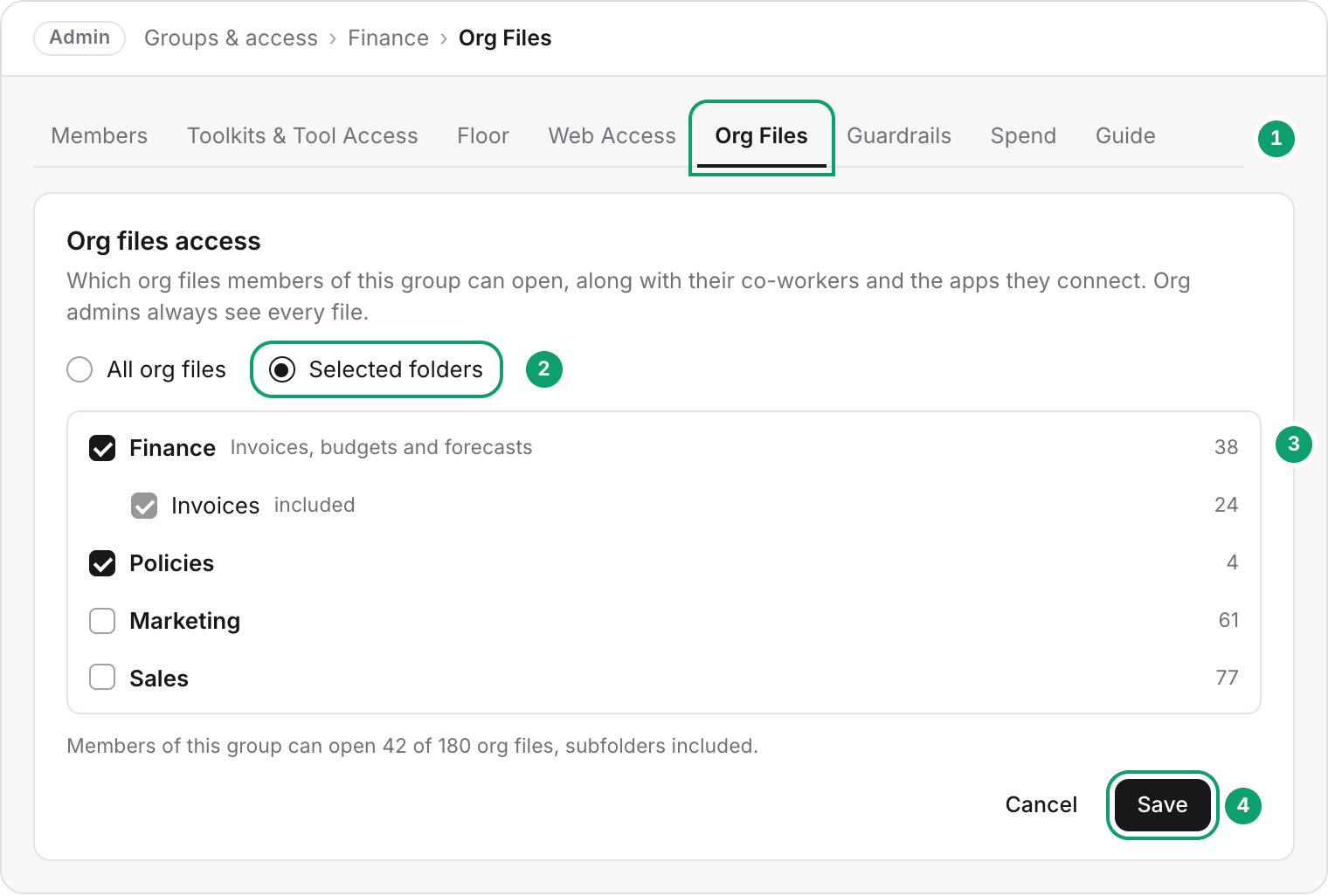
Which organisation files a group can open is set on the group, on its Org Files tab under Org files access: All org files (the default) or Selected folders. It decides who can list, search, read, download and recall those files, for people browsing the organisation files and for every agent acting for them.
- Choose folders on the group. Open Groups & access, choose the group, then Org Files. Select Selected folders, tick the folders and select Save. A ticked folder includes its subfolders, including ones added later. With nothing ticked, the group opens no organisation file.
- Files at the top level, in no folder, are open only to groups on All org files.
- To keep a folder to one team, put every other group on Selected folders without it, including All staff and All agents, which start on All org files.
- Org admins can open every folder.
- A member group covers its members, their co-workers and the apps they connect. An agent group covers its organisation agents; an organisation agent's own Files access can narrow that further. In a member's chat, an organisation agent opens only what both it and that member can open.
- See who can open a folder. In Admin -> Skills & files -> Files, a folder that not every group can open shows the groups that can, such as Finance (with +2 when there are more), or Admins only when no group can. Hover for the full list. An open folder's header shows Everyone when every group can open it.
- Access follows the folder. A file moved into a folder is opened by the groups that can open that folder.
- Folders agents create. An organisation agent limited to Selected folders saves only inside them: into its first folder when it names none, and it can create subfolders there. An agent with every organisation file can save at the top level or create a top-level folder, which only groups on All org files can open until an admin ticks it for another group.
- Closed folders stay out of sight. People see only the folders they can open; a folder above one of them shows as Contains folders you can open, without its files. An agent that asks for a file it cannot open is told no such file is available to it.
Example. At Acme Inc, the AP Inbox folder holds supplier invoices with bank details. Finance is on All org files; All staff, All agents and Marketing are on Selected folders without AP Inbox. Kayla in Finance and her co-worker read the invoices. Tyler in Marketing does not see the folder, and his co-worker cannot find or open the invoices. In the admin explorer, AP Inbox shows Finance.
How it works
- Any format, one library. Every save is indexed in the background so
files_searchand the Brain follow the latest content. Members upload files of up to 10 MB each. - Versions. Saving with a file's id adds a new version that records who saved it and when. Members see every version in Files, and restoring one saves it as a new latest version, so nothing is lost.
- File handles, not file contents. Every file has a handle,
cxh-file://and its id. To attach a file to an email or upload it to Google Drive, the agent passes the handle as that tool's file argument. CortexHub swaps in the file at the gateway, so the bytes never pass through the model, and an agent can never hand over a file it cannot open. - Files from your systems are kept, not pasted. When a tool a hosted agent calls returns a document (an invoice PDF from email, for example), CortexHub saves it to the agent's files and gives the agent its handle instead of the raw bytes.
- AI-made files are marked. A file an agent writes itself is marked as AI-generated where the format carries that metadata (for example HTML and SVG).
Privacy and retention
- Redacted text for search and reading. The text CortexHub extracts from a PDF or Office document, which is what search and
files_readreturn, is redacted by your organisation's data handling settings. The original file is kept as uploaded. - Member files are private. Other members cannot open a member's files unless the member shares them with Share. Admins see that an agent called a Files tool on a member's behalf, never the member's file.
- Kept until deleted. Files have no time limit. They stay until they are deleted, or the organisation is removed.
Control it
| Who | Where | What |
|---|---|---|
| Admin | Groups & access -> a group -> Toolkits & Tool Access -> Files -> Policies | Turn Files, or single Files tools, off for the group's agents. Turning off the destructive tools stops files_delete. |
| Admin | Groups & access -> a group -> Org Files | Choose All org files or Selected folders for the group's members and their agents, or for the group's organisation agents. |
| Admin | Admin -> Skills & files -> Files | See which groups can open each folder: restricted folders show the group names or Admins only. |
| Admin | An organisation agent's Settings -> Capabilities -> Files access | Narrow one organisation agent to Selected folders, enforced on every call. |
| Admin | A group's toolkit Policies tab | Change who approves files_delete (the Destructive decision), or hold files_save or files_move with a tool override. |
| Member | The agent's Overview -> Knowledge access -> Files | Choose Read and write, Read only or Off for each of their own agents. A newly connected app starts with Read only. |